
We know that equity documents can be complex - we'd love to help you with your equity upload. Please follow the below instructions to ask our Addition team to help your equity information upload.
- Download your equity documents from your equity plan administrator. There are instructions below on how to find these documents in Carta, Shareworks, and Pulley.
- Navigate to our secure file upload
- Upload your files and provide the email address associated with your Addition Wealth login
- That’s it! We’ll notify you when your equity details have been uploaded to your account - this usually takes up to 3 business days.
Finding your documents in Carta
Start by logging into Carta
Head over to your Carta Portfolio View (Click on: Portfolio)
Go to your Carta Holdings and scroll down to the bottom to reveal the chart of your equity grants. Click on each equity grant and follow the next two steps to download your equity documents.
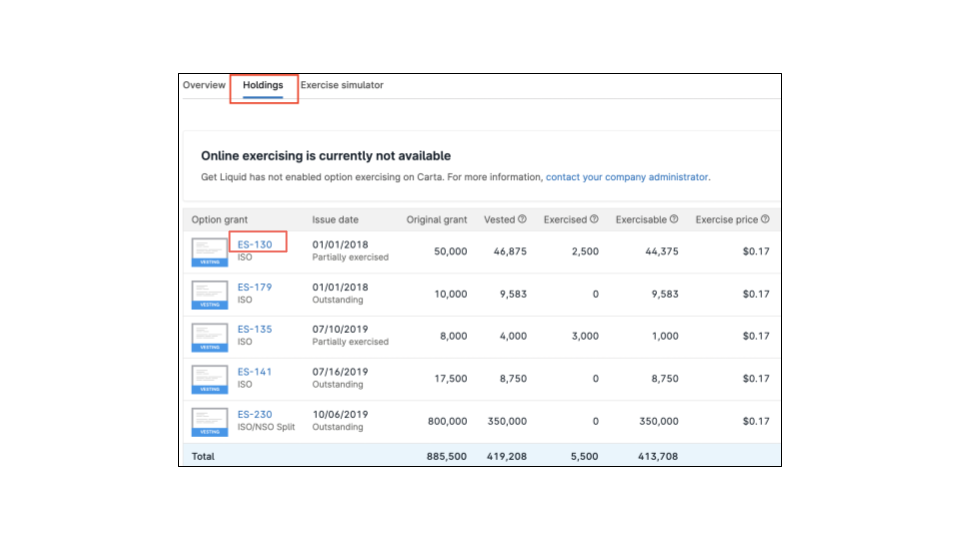
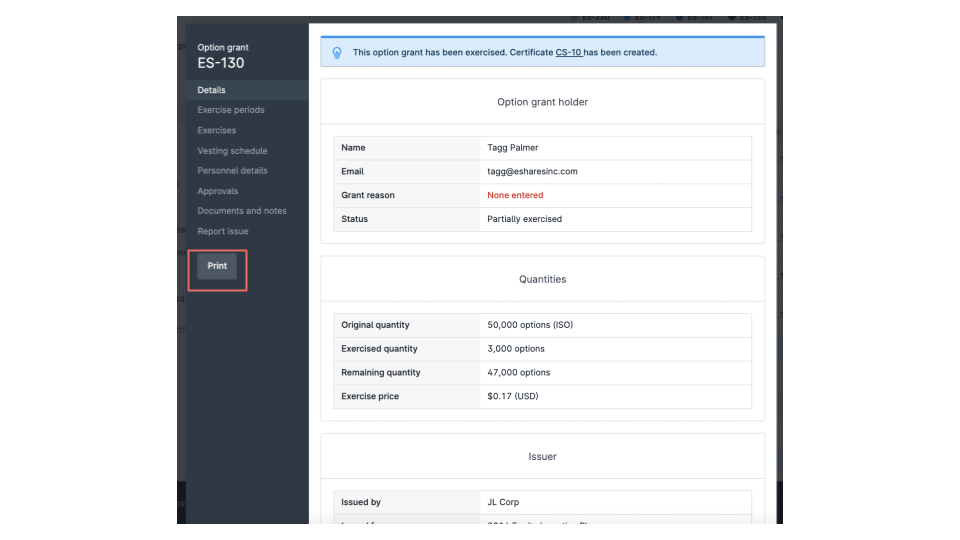
After clicking on your equity grant (named ES-130 in our example), click on "Print" on the lefthand panel.
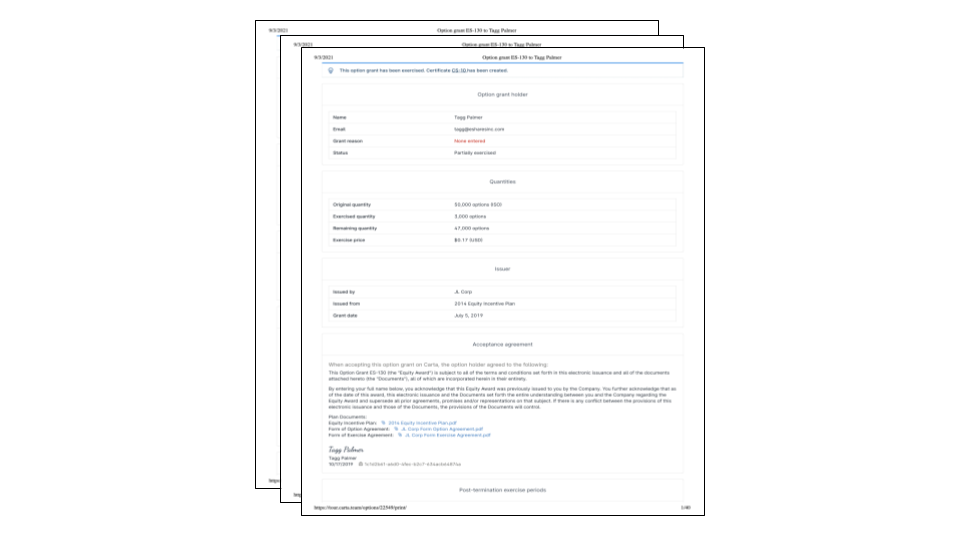
Carta will automatically open a window with your consolidated equity document. Please save to PDF and repeat this process for all of your equity grants.
Upload your PDFs into our secure file upload. Addition will be in touch once your documents are ready.
Finding your documents in Shareworks
Start by logging into Shareworks.
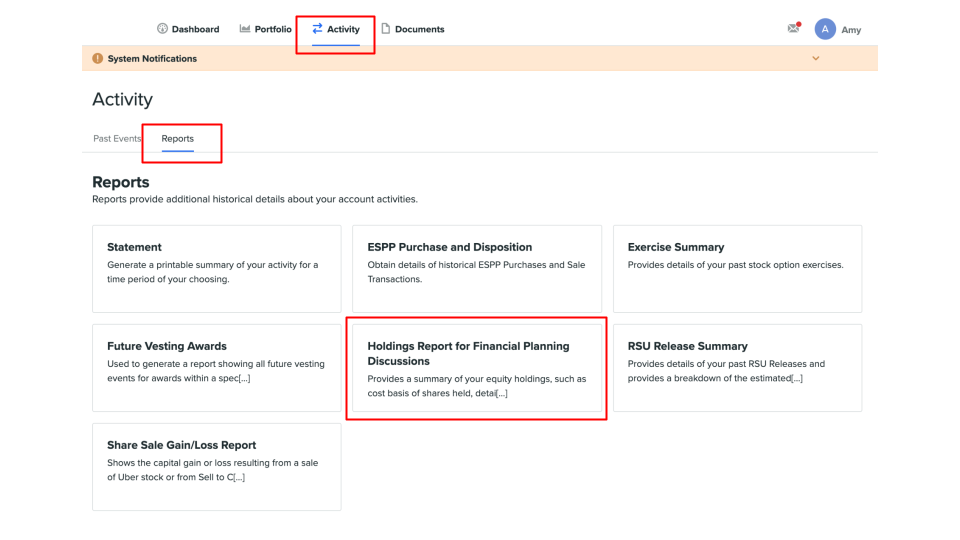
Head over to your Activity
Go to your Statement and click on "Holdings Report for Financial Planning Discussions".
Select "All Available History" and "Excel Workbook" and download the report for Addition.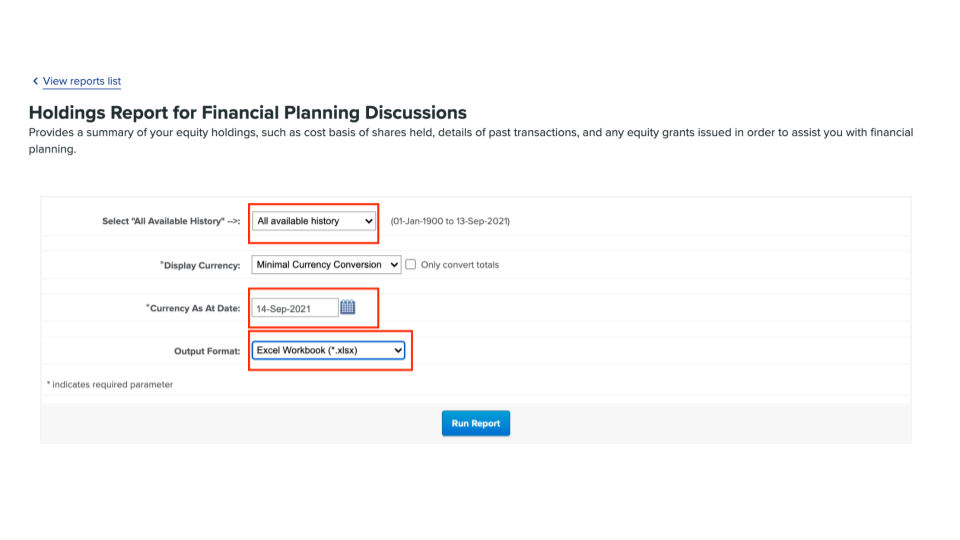
Upload your docs into our secure file upload. Addition will be in touch once your documents are ready.
Finding your documents in Pulley
Start by logging into Pulley
Head over to your Pulley Portfolio View (Click on: Portfolio)
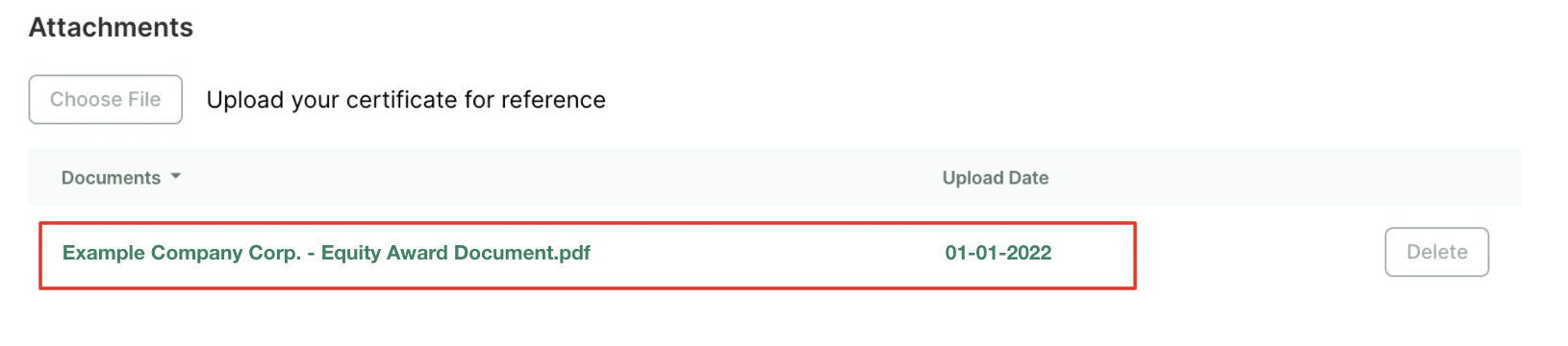
Click on your company. Click on the grant you'd like us to ingest. Scroll down to "Documents" and click on your stock plan document and download this report for Addition.
Upload your docs into our secure file upload. Addition will be in touch once your documents are ready.
Comments
0 comments
Article is closed for comments.